This setting enables you to register the paper type for each paper source.
|
IMPORTANT
|
|
Be sure to correctly set the paper type. If the type of paper is not set correctly, it could adversely affect the quality of the image. Moreover, the fixing unit may become dirty and require a service repair, or the paper could jam.
You can also specify the paper type from [Consumables] in the Status Monitor/Cancel. (See "Checking the Status of Consumables.")
|
1.
Press  → [Preferences] → [Paper Settings] → [Paper Settings].
→ [Preferences] → [Paper Settings] → [Paper Settings].2.
Select the paper source in which you want to register the paper type → press [Set].
When you register the new custom paper type or tab paper, select Paper Drawer 3 or 4.
To register a custom paper type, press [Custom Size] → select the paper size → press [OK].
To register tab paper, select [Tab] → press [Number of Tabs] → specify the number of tabs → press [OK].
The numbers on the screen represent the following paper sources:
|
The Paper Deck Unit-D1 is attached.
|
The Paper Deck Unit-A1 is attached.
|
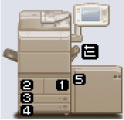 |
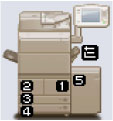 |
|
1: Paper Drawer 1
2: Paper Drawer 2 3: Paper Drawer 3 4: Paper Drawer 4 5: Paper Deck Unit-D1 (Option) |
1: Paper Drawer 1
2: Paper Drawer 2 3: Paper Drawer 3 4: Paper Drawer 4 5: Paper Deck Unit-A1 (Option) |
3.
Select the desired paper type → press [OK].
To load paper in the Paper Deck Unit-D1, press [Register Size] → specify the paper type to load.
Make sure that you load the same type of paper in the paper source as the one you registered.
|
NOTE
|
|
For more information on papers, see "Available Paper Stock."
For more information on registering the custom paper type, see "Registering and Editing Custom Paper Sizes."
You can register a paper type that is not listed in [Detailed Settings] in the Multi-Purpose Tray Settings: Selecting the Paper Type screen. For details on registering paper types, see "Registering/Editing Custom Paper Types."
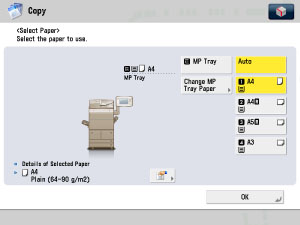
The registered paper type information is displayed through the use of icons on the paper selection screen, as shown below.
 |