If you are managing the machine with a login service, such as SSO-H (Single Sign-On H), enter the user name and password before using this machine.
|
NOTE
|
|
SSO-H is used as example to explain the procedure. However, if you are using a different login service, the login procedure may vary.
For instructions on selecting and setting a login service, see "Login Service Settings."
For instructions on registering user data for Local Device Authentication user authentication system of SSO-H, see "Registering/Editing User Data for Local Device Authentication."
For information on the user name used for the Domain Authentication user authentication system of SSO-H (including when performing Domain Authentication with 'Domain Authentication + Local Device Authentication' user authentication system), contact your system administrator.
|
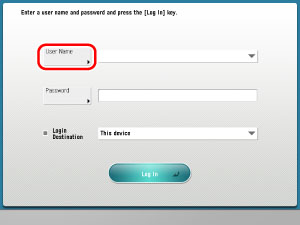
1.
Press [User Name].
|
IMPORTANT
|
|
To use the Domain Authentication user authentication system of SSO-H (including when performing Domain Authentication with the Domain Authentication + Local Device Authentication user authentication system), a Windows server in which Active Directory is installed is necessary.
If there is more than a 30 minute time difference between the current time set in the registry of a computer using Windows Active Directory and the time set on the machine, an error occurs when you log on using the Domain Authentication user authentication system of SSO-H (including when performing Domain Authentication with the Domain Authentication + Local Device Authentication user authentication system). To be able to log on, the current time on both the computer and the machine must match. For instructions on setting the current date and time on the machine, see "Current Date and Time."
|
|
NOTE
|
|
You can also specify the number of user's logs displayed on the touch panel display when logging in.
When using the Domain Authentication user authentication system of SSO-H (including when performing Domain Authentication with the Domain Authentication + Local Device Authentication user authentication system), you can use only alphanumeric characters, . (period), - (hyphen), _ (underscore), or % (percent) for a user name. You can log on only if you use valid characters.
|
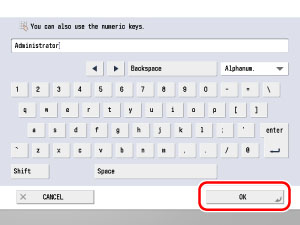
2.
Enter the user name → press [OK].
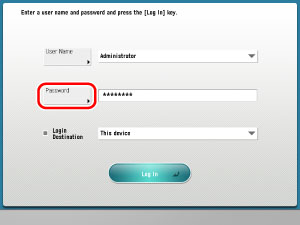
3.
Press [Password].
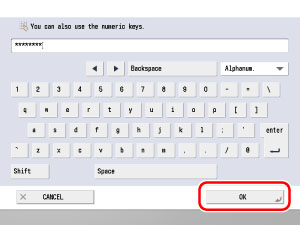
4.
Enter the password → press [OK].
|
NOTE
|
|
If you are using the Domain Authentication user authentication system of SSO-H (including when using Domain Authentication with the Domain Authentication + Local Device Authentication user authentication system), select the Login destination from the drop-down list.
|
5.
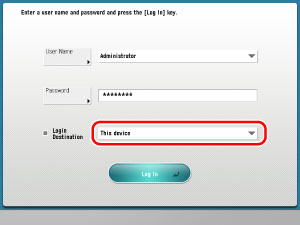
Select the login destination using the Login Destination drop-down list.
|
NOTE
|
|
If 'Local Device Authentication' is set as the user authentication system, the Login Destination drop-down list is not displayed.
The names of the domains which allow user authentication are displayed in the Login Destination drop-down list.
The items in the drop-down list are displayed in alphabetical order by default.
Regardless of the items displayed in the Login Destination drop-down list, the domain which the machine belongs to is displayed at the top of the list, and [This device] is displayed at the bottom of the list.
If seven or more items are displayed in the Login Destination drop-down list, [
 Alphabetical], [ Alphabetical], [ ], and [] are displayed in the Login Destination drop-down list. ], and [] are displayed in the Login Destination drop-down list.If you press [
Alphabetical], the items displayed in the Login Destination drop-down list are displayed in reverse alphabetical order, and the button changes to [Alphabetical].If you press [
Alphabetical], the items displayed in the Login Destination drop-down list are displayed in reverse alphabetical order, and the button changes to [Alphabetical].Press [
] to scroll down the list.Press [
] to scroll up the list. |
6.
Press [Log In].
You can also press  (Log In/Out) instead of [Log In] to log on.
(Log In/Out) instead of [Log In] to log on.If the user name or password that you entered is incorrect, a message appears prompting you to verify your user name and password. Repeat the procedure from step 1.
7.
After you finish using the machine, press [Log Out] on bottom right of the screen to log out.
You can also press (Log In/Out) to log out.
(Log In/Out) to log out.The screen for entering the user name and password appears.
|
NOTE
|
|
To perform operations again, you have to re-enter your user name and password.
If you do not log out after you are finished using the machine, any subsequent copies made are added to the total of the Department ID you previously entered.
Even if you forget to log out after you are finished using the machine, the screen for entering the Department ID and password automatically appears when a specified time elapses. (See "Auto Reset Time.")
|