A maximum of 3,000 buttons can be registered as the Personal button. Each user can register a maximum of 15 buttons.
A maximum of 15 buttons can be registered as the Shared button.
|
NOTE
|
|
Depending on the amount of memory being used for Quick Menu, you may not be able to register a button, even if the number of Personal buttons has not yet reached 3,000.
If the authentication is not set, the Personal button is not displayed.
For instructions on using the Personal button/Shared button, see "Using the Personal Button/Shared Button."
|
1.
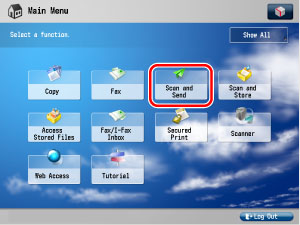
On the Main Menu screen, press the function button that you want to register in Quick Menu → specify the various settings.
For example) To scan two-sided originals and send the document in a Compact PDF format via e-mail to the recipient:
Press [Scan and Send].
|
NOTE
|
|
For information on the Scan and Send function, see "Scan and Send."
|
Press [New Destination] → [E-Mail].
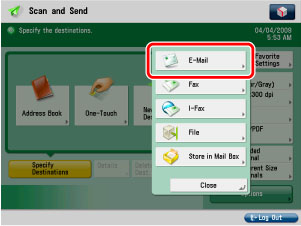
Enter your client's e-mail address → press [OK].
|
NOTE
|
|
For instructions on entering an e-mail address, see "Specifying the E-Mail Address Not Stored in the Address Book."
|
Press the file format button.
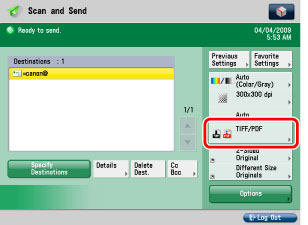
Select [Compact] → press [OK].
PDF:
One-Screen Display:
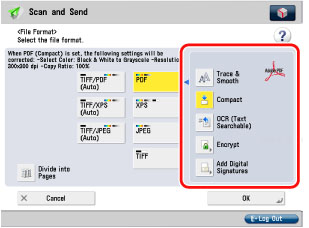
Two-Screen Display
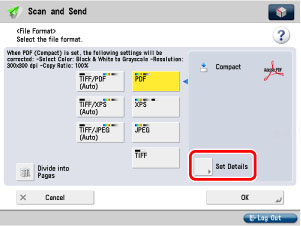
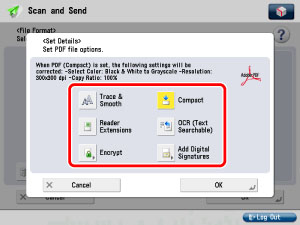
|
NOTE
|
|
Depending on the active status of the optional product, one of the two types of display screen (one-screen display or two-screen display) appears. For two-screen display, specify the additional function settings by pressing [Details].
|
Press [Options].
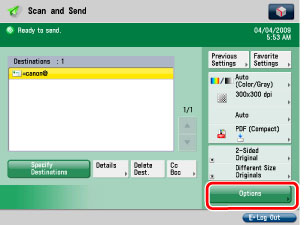
Press [2-Sided Original].
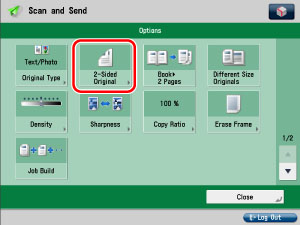
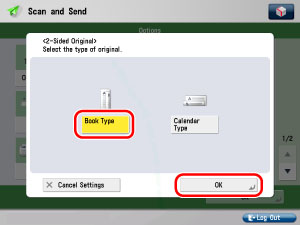
Select the type of two-sided original → press [OK].
2.
Press  → press [Register to Quick Menu].
→ press [Register to Quick Menu]. 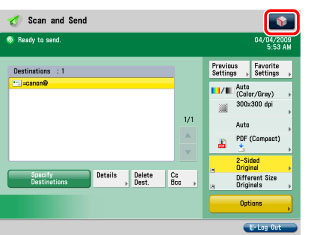

3.
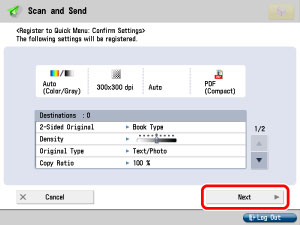
Verify the settings → press [Next].
4.
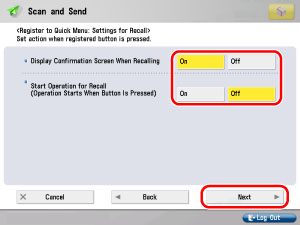
Specify the recall settings for the button to register → press [Next].
|
[Display Confirmation Screen When Recalling]:
|
If [On] is selected, when the registered button is recalled, the confirmation dialog box for the settings is displayed.
For more information on the confirmation dialog box for the settings, see "Using the Personal Button/Shared Button."
If [Off] is selected, when the registered button is recalled, the confirmation dialog box for the settings is not displayed.
|
|
[Start Operation for Recall (Operation Starts When Buttons Pressed)]:
|
If [On] is selected, the settings registered in the button are processed when the registered button is pressed. You do not have to press
 to start the job. to start the job.If [Off] is selected, to start processing the registered settings, you must press the registered button and then press
. |
5.
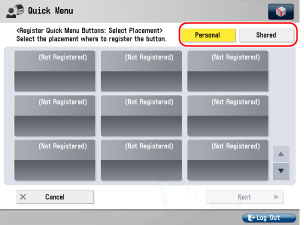
Select [Personal] or [Shared].
6.
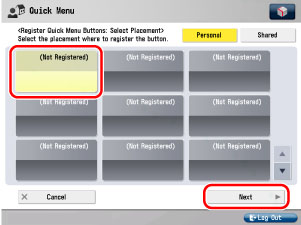
Select the button you want to register → press [Next].
7.
Enter a button name and comment → press [OK].
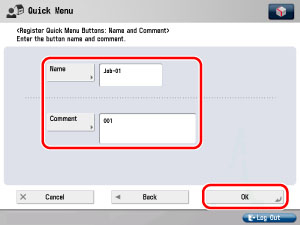
[Name]:
Press [Name] → enter a name using the keyboard.
[Comment]:
Press [Comment] → enter comment using the keyboard.
|
NOTE
|
|
The maximum number of characters you can enter for the button name is 16 in one line, and you can use up to two lines.
The maximum number of characters you can enter for the comment is 26 in one line, and you can use up to three lines.
|
8.
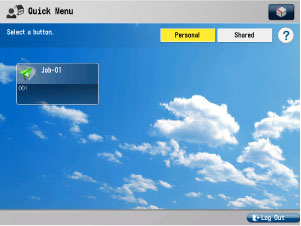
Press [Close] to complete the registration for a button on the Quick Menu.
If you want to change the name or comment, press [Rename].
The registered button is displayed on the Quick Menu screen.
This section describes how to use the registered Personal buttons/Shared buttons.
|
NOTE
|
|
For instructions on registering a Personal button/Shared button, see "Registering the Personal Button/Shared Button."
|
1.
Press  .
.
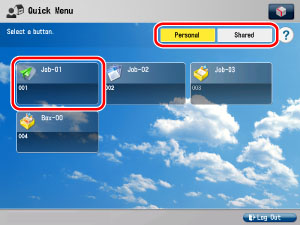
.The Quick Menu Screen is displayed.
2.
Select the Personal button/Shared button that contains your desired settings.
3.
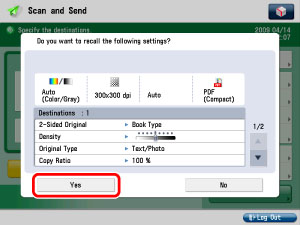
Confirm the button settings → press [Yes].
|
NOTE
|
|
If [Display Confirmation Screen When Recalling] is set to 'Off' for the recall settings when registering in Quick Menu, the confirmation dialog box is not displayed before processing the settings registered in the button. (See "Registering the Personal Button/Shared Button.")
|
4.
Press .
.The settings registered in the button are processed.
|
NOTE
|
|
If you want to cancel processing the settings registered in the Personal button/Shared button → press
 . . |