

0WR8-036
 |
|
It is convenient to register a frequently used destination in a one-touch button. This enables you to quickly specify a destination with the simple press of a button. In addition to registering a fax number or e-mail address in a one-touch button, you can also register a file server folder location (IP address and path) to use when storing scanned data.
|
|
NOTE
|
|
Just as with the Address Book, you can register destinations in a one-touch button from the LDAP server or combine destinations into a group (Registering a Group in a One-Touch Button).
|
1
Press <Dest./Fwd. Settings> on the Main Menu  <Register One-Touch>.
<Register One-Touch>.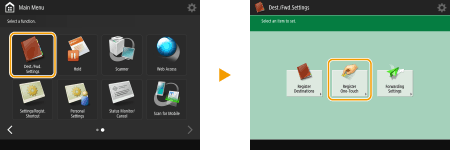
2
Select the one-touch number to register the destination in, and press <Register/Edit>.
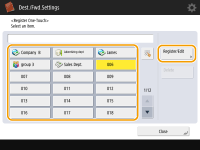
A three-digit number (001 to 200) is assigned to each one-touch button. You can also specify a one-touch button by pressing  and entering the three-digit number using the numeric keys.
and entering the three-digit number using the numeric keys.3
Select functions you want to register.
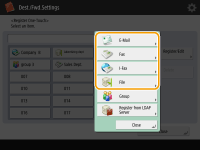
Select the functions to use for the destination, from <Fax>, <E-Mail>, <I-Fax>, or <File>.
4
Press <Name> enter the destination name, and press <OK>.
enter the destination name, and press <OK>.5
Press <One-Touch Name> enter the one-touch button name to be displayed, and press <OK>.
enter the one-touch button name to be displayed, and press <OK>.6
Configure settings depending on the functions selected in step 3.
For more information about the settings, see step 6 in Registering Destinations in the Address Book.
7
Press <OK> <Close>.
<Close>.Destinations registered in one-touch buttons can be combined into a group and registered as a single destination. You can also register a Mail Box (machine's temporary storage space) in a group (Making Simple Edits to Files).
|
1
|
Press <Dest./Fwd. Settings> on the Main Menu
<Register One-Touch>. |
|
2
|
Select the button you want to register and press <Register/Edit>
<Group>. |
|
3
|
Press <Name>
enter the group name, and press <OK>. |
|
4
|
Press <One-Touch Name>
enter the one-touch button name to be displayed, and press <OK>. |
|
5
|
Select the destinations you want to register in a group.
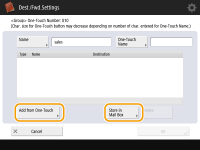 If you want to select a destination from a one-touch button, press <Add from One-Touch>
select the destination press <OK>. If you want to select a Mail Box (machine's temporary storage space), press <Store in Mail Box> select the Mail Box press <OK>. |
|
6
|
Press <OK>
<Close>. |
|
TIPS
|
|
If the LDAP server has already been registered in the machine (Registering the LDAP Server), you can search for destinations and register them in one-touch buttons. Press <Dest./Fwd. Settings>
<Register One-Touch> select the one-touch button you want to register press <Register/Edit> <LDAP Server> and search for destinations using <Search by Conditions> or <Search by Name>. After confirming the settings of the destination, press <One-Touch Name> enter the one-touch name to be displayed press <OK>.If the time setting between the LDAP server and the machine differs by five minutes or more, a search cannot be performed.
Unlike the Address Book, you cannot select more than one destination at a time to register.
The destination information you can acquire through searching only includes names and e-mail addresses.
|
