You have to specify the relevant information for the LDAP server, such as the server name and address.
1.
Press  → [Set Destination] → [Register LDAP Server] → [Register].
→ [Set Destination] → [Register LDAP Server] → [Register].2.
Specify each setting → press [Next].
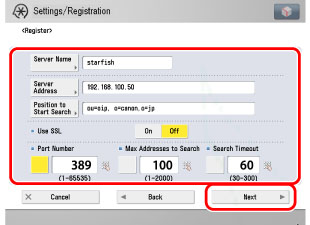
[Server Name]:
Enter a server name → press [OK].
[Server Address]:
Press [Server Address] → enter the server's address → press [OK].
[Position to Start Search]:
Press [Position to Start Search] → enter the location to start searching → press [OK].
If the server's LDAP version is 3, then you do not have to specify [Position to Start Search]. (If the LDAP version is 3, the machine automatically retrieves settings from the server, and sets the location to start searching.) If the server's LDAP version is 2, you have to specify [Position to Start Search].
Enter the location to start searching according to the type of LDAP server you are using, or as described below.
If you are using Windows 2000 Server with Active Directory, Windows Server 2003 with Active Directory, or Windows Server 2008 with Active Directory:
Add "DC=" to each dot separated series of characters in the Active Directory domain name, and separate each series of characters by a comma.
Example: If <team1.salesdept.canon.co.jp> is the domain name in Active Directory:
DC=team1, DC=salesdept, DC=canon, DC=co, DC=jp
Add "DC=" to each dot separated series of characters in the Active Directory domain name, and separate each series of characters by a comma.
Example: If <team1.salesdept.canon.co.jp> is the domain name in Active Directory:
DC=team1, DC=salesdept, DC=canon, DC=co, DC=jp
If you are using Novell NetWare 5.1 (NDS) or later:
Add the corresponding object class "o=", "ou=", or "c=" to each dot-separated series of characters that configure the distinguished name, and separate each series of characters by a comma.
Example: If <TEAM1.SALESDEPT.CANON> is the distinguished name in NDS:
ou=team1, ou=salesdept, o=canon
Add the corresponding object class "o=", "ou=", or "c=" to each dot-separated series of characters that configure the distinguished name, and separate each series of characters by a comma.
Example: If <TEAM1.SALESDEPT.CANON> is the distinguished name in NDS:
ou=team1, ou=salesdept, o=canon
If you are using Lotus Notes Domino R5 or later:
Enter the dn (Distinguished Name) of the node on the directory tree, such as "ou=team1", "ou=salesdept", "o=canon", or "c=jp".
Enter the dn (Distinguished Name) of the node on the directory tree, such as "ou=team1", "ou=salesdept", "o=canon", or "c=jp".
<Use SSL>:
|
[On]:
|
SSL is used. Using SSL encodes the content of the communication, and ensures greater security.
|
|
[Off]:
|
SSL is not used.
|
<Port Number>:
Press [Port Number] → enter a port number using  -
-  (numeric keys).
- (numeric keys).<Max Addresses to Search>:
Press [Max Addresses to Search] → enter the maximum number of addresses to search using - (numeric keys).
- (numeric keys).<Search Timeout>:
Press [Search Timeout] → enter the timeout time, in seconds, using - (numeric keys).
- (numeric keys).|
IMPORTANT
|
|
If <Login Information> is set to 'Use (Security Auth.)' for the LDAP server and Reverse DNS Lookup (a function that looks up the host name from the IP address) is not supported, enter a host name instead of an IP address.
|
3.
Select [Do Not Use], [Use], or [Use (Security Auth.)] for <Login Information>.
|
IMPORTANT
|
|
[Use (Security Auth.)] next to <Login Information> can be selected only if the LDAP server is running on Windows 2000 Server with Active Directory, Windows Server 2003 with Active Directory, or Windows Server 2008 with Active Directory.
If you entered an IP address in step 2, and Reverse DNS Lookup (a function that looks up the host name from the IP address) is not supported, select either [Do Not Use] or [Use].
If <Login Information> is set to 'Use (Security Auth.)', and if Date & Time Settings in Preferences (from the Settings/Registration screen) is different from the time settings on the LDAP server, the machine may not be able to connect to the LDAP server.
|
Select the LDAP Server Version and Character Code → press [OK].
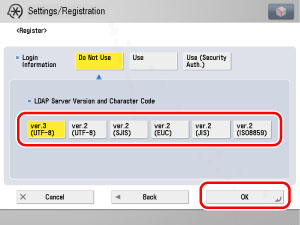
Select the LDAP version and character code according to the LDAP server's environment.
Specify each setting → press [OK].
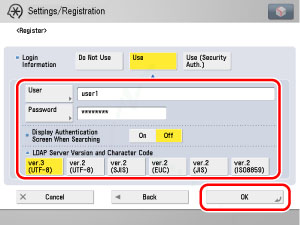
[User]:
Press [User] → enter a user name → press [OK].
Enter the user name according to the type of LDAP server you are using.
If you are using Windows 2000 Server with Active Directory, Windows Server 2003 with Active Directory, or Windows Server 2008 with Active Directory:
Press [User] → enter "Windows domain name/Windows user name".
Example: If <team1> is the Windows domain name, and <user1> is the Windows user name:
team1/user1
Press [User] → enter "Windows domain name/Windows user name".
Example: If <team1> is the Windows domain name, and <user1> is the Windows user name:
team1/user1
If you are using Novell NetWare 5.1 (NDS) or later:
Press [User] → add the corresponding object class "o=", "ou=", or "c=" to each dot-separated series of characters that configure the distinguished name, and separate each series of characters by a comma.
Example: If <user1.TEAM1.SALESDEPT.CANON> is the distinguished name in NDS:
cn=user1, ou=team1, ou=salesdept, o=canon
Press [User] → add the corresponding object class "o=", "ou=", or "c=" to each dot-separated series of characters that configure the distinguished name, and separate each series of characters by a comma.
Example: If <user1.TEAM1.SALESDEPT.CANON> is the distinguished name in NDS:
cn=user1, ou=team1, ou=salesdept, o=canon
If you are using Lotus Notes Domino R5 or later:
Press [User] → enter the dn (Distinguished Name) of the user, such as "cn=admin", "ou=team1", or "ou=salesdept".
Press [User] → enter the dn (Distinguished Name) of the user, such as "cn=admin", "ou=team1", or "ou=salesdept".
[Password]:
Press [Password] → enter a password → press [OK].
Re-enter the password for confirmation → press [OK].
After pressing [OK], the password that you entered appears as asterisks (********) on the Register screen.
<Display Authentication Screen When Searching>:
|
[On]:
|
When searching for information on the server, a login information dialog box is displayed even if a password is not required.
|
|
[Off]:
|
When searching for information on the server, a login information dialog box is not displayed.
|
<LDAP Server Version and Character Code>:
Select the LDAP version and character code according to the LDAP server's environment.
Specify each setting → press [OK].
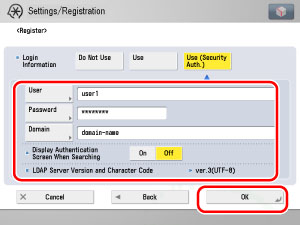
[User]:
Press [User] → enter a user name → press [OK].
Example: If <user1 > is the Windows user name:
user1
[Password]:
Press [Password] → enter a password → press [OK].
Re-enter the password for confirmation → press [OK].
After pressing [OK], the password that you entered appears as asterisks (********) on the Register screen.
[Domain]:
Press [Domain] → enter a domain name → press [OK].
Enter the directory tree name of the Active Directory, such as <team1.salesdept.canon.co.jp>.
<Display Authentication Screen When Searching>:
|
[On]:
|
When searching for information on the server, a login information dialog box is displayed even if a password is not required.
|
|
[Off]:
|
When searching for information on the server, a login information dialog box is not displayed.
|