When the Domain Authentication System of SSO-H is being used, login authentication is performed by users that belong to the Active Directory server of the domain specified as the login destination. Contact the system manager to register/edit user data for Domain Authentication.
|
IMPORTANT
|
|
When using Domain Authentication, you must use the user logon name registered in the Active Directory server of the domain specified as the login destination. However, the internal processes of SSO-H use the pre-Windows 2000 user logon name.
|
Make sure to meet the following conditions when registering user information for Domain Authentication. If you do not meet these conditions when you register the information, you will become unable to perform authentication with Active Directory users.
The value before the '@' in the user logon name matches the value in the pre-Windows 2000 user logon name
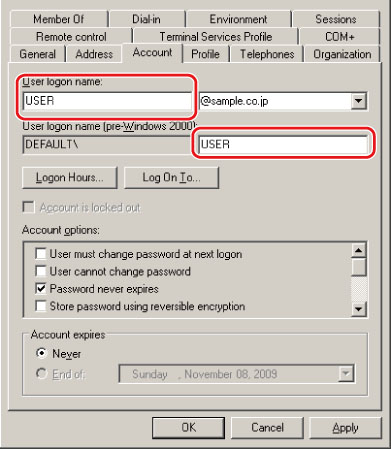
The value after the '@' in the user logon name matches the domain name of the Active Directory to perform authentication with
When Domain Authentication is being used, only a Domain Authentication administrator user can log in to the SSO-H Management Application.
Add a registered user to the 'Canon Peripheral Admins' group, or an arbitrary administrator group of Active Directory to make that user a Domain Authentication administrator user. Follow the procedure below to add the 'Canon Peripheral Admins' group.
|
IMPORTANT
|
|
Do not set the 'Canon Peripheral Admins' group as the primary group.
|
1.
Start the Active Directory management tool, "Active Directory Users and Computers."
2.
Right-click the container and organizational unit you want to add.
3.
Select [New] → [Group] from the pop-up menu that is displayed.
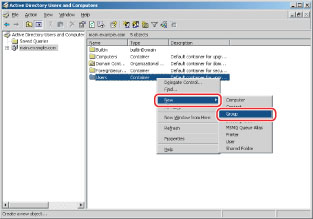
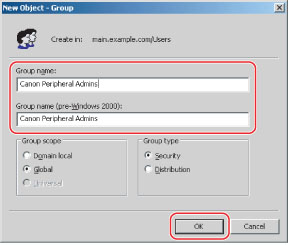
The [New Object - Group] dialog box is displayed.
4.
Enter the group name ('Canon Peripheral Admins') → click [OK].
1.
Start the Active Directory management tool, "Active Directory Users and Computers."
2.
Right-click the user account you want to add to the 'Canon Peripheral Admins' group.
3.
Select [Add to a group] from the pop-up menu that is displayed.
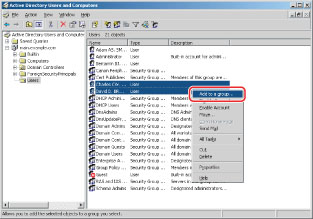
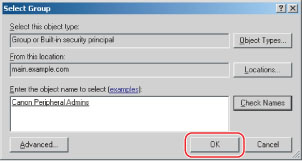
The [Select Group] dialog box is displayed.
4.
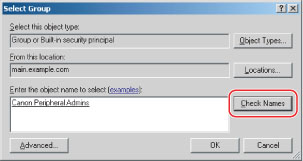
Enter 'Canon Peripheral Admins' in the group selection dialog box → click [Check Names].
5.
Confirm that [Canon Peripheral Admins] is underlined → click [OK].