You can set any possible combination of send settings and register them in a favorite settings button in memory. There are 18 favorite settings buttons and they can be assigned names and comments for increased convenience. This feature is useful for registering frequently used send settings.
|
NOTE
|
|
The send settings registered as favorite settings buttons in memory are not deleted, even if the power is turned OFF.
If an address included in a favorite settings button is deleted from the Local Address Book, it is also deleted from the settings registered in the favorite settings button.
If a button already has settings stored in it, (
 ) is displayed. ) is displayed. |
1.
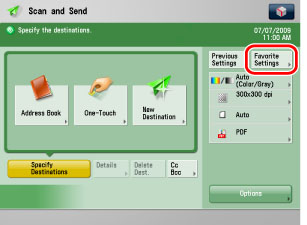
Specify the send settings that you want to register → press [Favorite Settings].
2.
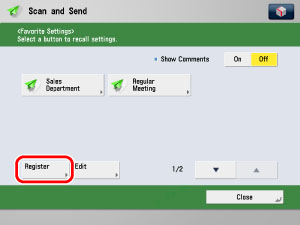
Press [Register].
3.
Confirm the send settings → press [Next].
4.
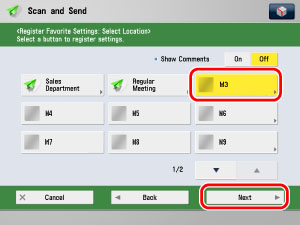
Select a button for registering the send settings → press [Next].
5.
Press [Name] and [Comment] → enter the name and comment → press [OK].
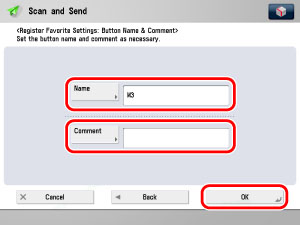
[Name]: Press [Name] → enter the name → press [OK].
[Comment]: Press [Comment] → enter the comment → press [OK].
|
NOTE
|
|
If you press [OK] without entering any characters, the button name reverts to its current name (default M1 to M18).
|
A screen appears, asking for your confirmation to overwrite the previous settings → press [Yes].
6.
Press [Close].
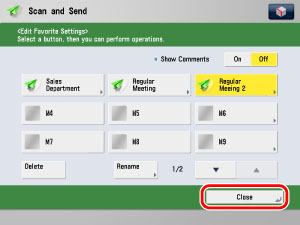
If you want to edit the name or comment for the registered button, press [Rename] → edit desired setting.
If <Show Comments> is set to 'On', the registered comments are displayed.
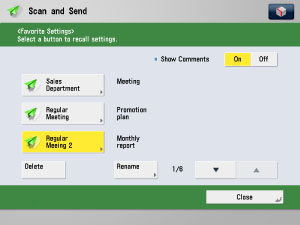
1.
Press [Favorite Settings] → [Edit].
2.
Select a button to check the settings → press [Check Content].
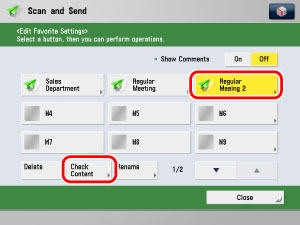
3.
Confirm the settings → [OK] → [Close].
1.
Press [Favorite Settings] → [Edit].
2.
Select a button to edit → press [Rename].
|
NOTE
|
|
You can also name keys with no settings stored in them.
|
3.
Edit the name and/or comment → press [OK].
|
NOTE
|
|
If you press [OK] without entering any characters, the key name reverts to its current name (default M1 to M18).
|
4.
Press [Close].
If <Show Comments> is set to 'On', the registered comments are displayed.
1.
Press [Favorite Settings] → [Edit].
2.
Select a button to delete → press [Delete].
3.
A screen appears, asking for your confirmation to delete the settings → press [Yes].
|
NOTE
|
|
Key names and comments are not deleted. For instructions on changing a key name and comment, see "Editing a Name/Comment."
|
4.
Press [Close].